
Step-by-Step Guide to Install SSL on Shared Hosting Accounts
Introduction
In today’s digital landscape, ensuring the security of your website is more critical than ever. With cyber threats on the rise, implementing an SSL (Secure Socket Layer) certificate is no longer just an option—it’s a necessity. Particularly for website owners using shared hosting, the task of installing an SSL certificate can often seem daunting. However, it’s a straightforward process that can significantly enhance your site’s credibility and protect sensitive user data. In this comprehensive step-by-step guide, we will walk you through the entire installation process, demystifying each stage and empowering you to secure your website with confidence. Whether you’re a seasoned tech veteran or a first-time website owner, our professional insights will make the journey to SSL installation seamless and accessible. Let’s dive in and elevate your website’s security together!
Table of Contents
- Understanding SSL and Its Importance for Shared Hosting
- Choosing the Right SSL Certificate for Your Needs
- Step-by-Step Installation Process for SSL on Shared Hosting
- Troubleshooting Common SSL Installation Issues
- In Conclusion
Understanding SSL and Its Importance for Shared Hosting
Secure Sockets Layer (SSL) is a critical technology that establishes an encrypted link between a web server and a browser, ensuring that sensitive data such as login credentials, credit card numbers, and personal information remains private and secure during online transactions. For shared hosting accounts, which involve multiple users sharing the same server resources, the importance of SSL cannot be overstated. Without SSL, data transmitted over the internet is vulnerable to interception by malicious actors, which can lead to data breaches and significant trust issues with your audience. This is particularly vital for any business or online platform dealing with sensitive information.
Implementing SSL not only safeguards user data but also enhances your website’s credibility and SEO ranking. Search engines like Google prioritize websites that employ SSL encryption, thus giving them a competitive edge over non-secure sites. Additionally, users are more likely to interact with and trust a site that displays a secure connection, indicated by the padlock icon in the browser’s address bar. To maximize these benefits, you should ensure that your SSL certificate is properly installed and configured. Here are some key points to consider:
- Choose the Right SSL Certificate: Consider whether you need a Domain Validated (DV), Organization Validated (OV), or Extended Validation (EV) certificate based on your business needs.
- Check Hosting Provider Support: Ensure your shared hosting provider offers SSL installation support and compatibility.
- SSL Renewal: Keep track of your SSL certificate’s expiration date for timely renewal to maintain secure connections.
| Certificate Type | Features | Best For |
|---|---|---|
| DV (Domain Validation) | Basic encryption, quick issuance | Personal websites, blogs |
| OV (Organization Validation) | Higher validation level, displays company info | Businesses with a physical location |
| EV (Extended Validation) | Highest level of validation, green address bar | Large e-commerce sites, banks |
Choosing the Right SSL Certificate for Your Needs
When selecting an SSL certificate, it’s crucial to understand your specific needs and the type of website you’re operating. There are several options available, each designed to provide varying levels of security and trust. Here are some important factors to consider:
- Domain Validation (DV): Ideal for personal blogs or small websites, this certificate offers basic encryption and is generally issued quickly.
- Organization Validation (OV): Suitable for businesses, this requires more verification than DV, ensuring that the organization is legitimate.
- Extended Validation (EV): The gold standard for e-commerce sites, EV certificates involve rigorous checks and display a green address bar, indicating enhanced trustworthiness.
- Wildcard Certificates: If you manage multiple subdomains, a wildcard certificate allows you to secure all of them under a single certificate, simplifying management.
Additionally, consider your budget and the level of support you might need. Different SSL providers offer various pricing, and sometimes the cheapest option may not meet your requirements for technical support or warranty coverage. Review the following table to understand the differences among common types of SSL certificates:
| Type | Validation Level | Best For | Typical Price Range |
|---|---|---|---|
| DV SSL | Domain | Blogs, Personal Sites | $10 – $50/year |
| OV SSL | Organization | Businesses | $50 – $150/year |
| EV SSL | Extended | E-commerce Sites | $100 - $300/year |
| Wildcard SSL | Domain | Multiple Subdomains | $100 – $500/year |
Step-by-Step Installation Process for SSL on Shared Hosting
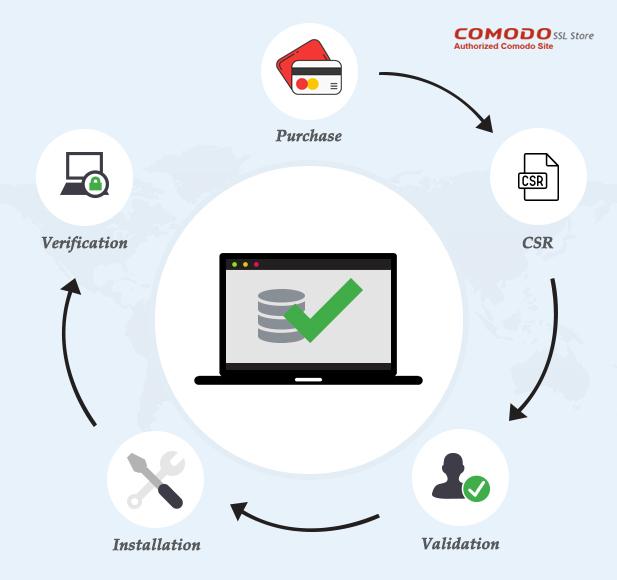
To begin, you need to log in to your shared hosting control panel. Most commonly, this is done through cPanel or a similar interface. Once you’ve accessed the control panel, locate the SSL/TLS section. Click on it to access the interface for managing your SSL certificates. From here, you can either purchase an SSL certificate through your host if you haven’t already done so or upload the certificate files if you’ve acquired them from a third-party provider.
After obtaining your SSL certificate, look for the option to Install an SSL Certificate. You will be prompted to fill in details such as the certificate itself, the private key, and any necessary intermediate certificates. Ensure that these are carefully copied and pasted from the files you received. Once you have entered all the required information, click on the Install button. To confirm the successful installation, navigate to your website and check if it displays HTTPS in the URL bar and look for a padlock icon, indicating a secure connection.
Troubleshooting Common SSL Installation Issues
Installing SSL can sometimes lead to unexpected roadblocks. Here are some common issues you may encounter, along with their solutions:
- Certificate not trusted: Ensure that your SSL certificate is properly installed and that your domain is pointed to the correct server. You can check the certificate chain using online tools like SSL Labs.
- Mismatched domain: Verify that the domain on your SSL certificate matches the domain you are securing. If you’re using a wildcard certificate, ensure that the subdomain specified is correct.
- Secure connection failed: This may happen due to a misconfiguration in your web server. Ensure that your hosting configuration allows HTTPS and that the SSL directives are set correctly.
Another frequent issue arises when browsers cache the old SSL settings. Here’s how to refresh your connection:
- Clear browser cache: Sometimes, outdated cache can cause SSL errors. Clear your browser history or use incognito mode to check your site.
- Check for mixed content: If certain elements are still loading over HTTP rather than HTTPS, browsers may flag the site as insecure. Use browser developer tools to identify and update these links.
- Review your .htaccess file: Ensure that your .htaccess file includes rules for HTTPS redirection. Incorrect settings here may prevent proper SSL functioning.
In Conclusion
Conclusion
Installing an SSL certificate on your shared hosting account may seem daunting at first, but with this step-by-step guide, you should now feel empowered and equipped to enhance your website’s security. The importance of SSL cannot be overstated; it not only protects your visitors’ data but also boosts your site’s credibility and boosts your search engine rankings.
Remember, the specifics of the installation process may vary slightly based on your hosting provider, so always refer to their documentation for tailored instructions. Additionally, keep in mind that while the initial setup is crucial, ongoing maintenance and renewal of your SSL certificate will ensure continued protection for your users.
By taking these steps, you are making a proactive move toward safeguarding your online presence and delivering a trustworthy experience to your audience. If you have any questions or run into challenges during installation, don’t hesitate to reach out to your hosting’s customer support or consult relevant forums. Here’s to a secure browsing experience for you and your site visitors! Happy hosting!