
Step-by-Step Guide: Installing WordPress on Your Hosting Account
In today’s digital landscape, having a website is essential for businesses, bloggers, and creatives alike. One of the most popular platforms for building and managing websites is WordPress, thanks to its user-friendly interface and extensive customization options. Whether you’re launching a personal blog, an e-commerce store, or a professional portfolio, WordPress provides the flexibility and functionality to bring your vision to life.
If you’re ready to take the plunge and install WordPress on your hosting account but aren’t sure where to start, you’re in the right place. This step-by-step guide will walk you through the installation process, ensuring that you set up your site correctly and efficiently. We’ll cover everything from selecting the right hosting provider to configuring your settings for optimal performance. With clear instructions and helpful tips along the way, you’ll be well on your way to creating an engaging online presence in no time. Let’s get started!
Table of Contents
- Choosing the Right Hosting Provider for Your WordPress Site
- Preparing Your Hosting Environment for a Smooth Installation
- Executing the WordPress Installation Process with Confidence
- Essential Post-Installation Tasks to Optimize Your Website
- To Conclude
Choosing the Right Hosting Provider for Your WordPress Site
When selecting the right hosting provider for your WordPress site, consider several crucial factors that align with your specific needs. Performance is paramount; look for a host that offers fast server speeds and uptime guarantees. Additionally, evaluate the customer support provided—opt for hosts that offer 24/7 assistance via multiple channels. Other essential features to take into account include:
- Scalability: Ensure that the host can accommodate your site’s growth as traffic increases.
- Security: Look for built-in security features, such as SSL certificates and regular backups.
- Ease of Use: A user-friendly control panel can streamline your management tasks.
- Pricing: Understand the pricing models, including any potential additional fees.
Furthermore, reviewing the hosting provider’s reputation and user reviews can provide insights into customer satisfaction and reliability. To compare different hosting options effectively, consider organizing key aspects in a table format. Here’s a simplified view of popular hosting providers that excel in WordPress hosting:
| Hosting Provider | Performance | Support | Price |
|---|---|---|---|
| SiteGround | Excellent | 24/7 Live Chat | Starting at $3.99/mo |
| Bluehost | Very Good | 24/7 Phone Support | Starting at $2.95/mo |
| WP Engine | Outstanding | 24/7 Email & Chat | Starting at $20/mo |
Preparing Your Hosting Environment for a Smooth Installation
Preparing your hosting environment is crucial to ensuring a seamless WordPress installation. Start by confirming that your hosting plan meets the necessary system requirements for WordPress. This typically includes having a compatible version of PHP (7.4 or greater), MySQL (5.7 or greater), or MariaDB (10.3 or greater). Additionally, ensure that you have HTTPS enabled, as it contributes to both security and search engine rankings.
Next, create an organized file structure and database in your hosting account. Use your hosting provider’s control panel to set up a new MySQL database and user. Record the database name, username, and password securely, as you will need them during the installation process. To streamline this task, consider the following checklist:
- Check PHP version compatibility
- Enable HTTPS for your site
- Create a MySQL database and user
- Record database credentials securely
Once your hosting environment is ready, you’ll be well-equipped to proceed with a hassle-free installation of WordPress.
Executing the WordPress Installation Process with Confidence
Installing WordPress can be a straightforward task if you follow a structured approach. Begin by ensuring you have the necessary elements in place, which includes a reliable hosting account and a domain name. Take the time to review your hosting provider’s documentation as this often contains specific installation guidelines tailored to their environment. Key components to have ready are:
- Access to a hosting control panel (e.g., cPanel, Plesk)
- Database credentials for MySQL/MariaDB
- File transfer method (FTP/SFTP)
Once you have gathered everything, it’s time to download WordPress from the official website. After the download completes, unzip the files and upload them to your desired directory on the server using an FTP client. Next, you will need to create a new database through the hosting control panel. It’s advisable to use a secure username and password for the database to enhance security. Consider these essential steps for the installation process:
| Step | Action |
|---|---|
| 1 | Upload WordPress files to your server |
| 2 | Create a new MySQL database and user |
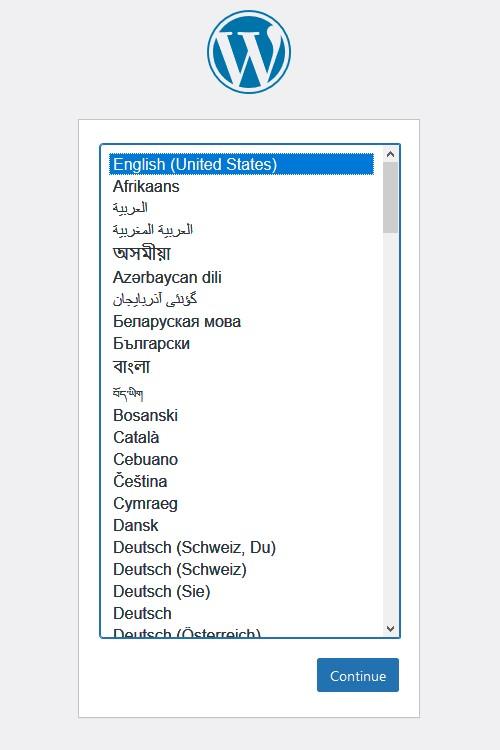
| 3 | Run the installation script via your browser |
Essential Post-Installation Tasks to Optimize Your Website
Once your WordPress installation is complete, it’s essential to take a few critical steps to optimize your website for performance and security. Start by configuring your permalinks to improve SEO and user experience. Navigate to Settings > Permalinks and select a structure that includes the post name for clean and readable URLs. Next, install a robust caching plugin to enhance loading speed; popular options include WP Super Cache and W3 Total Cache. Implementing these plugins reduces server load and can significantly improve your site’s performance.
Another important task is to enhance your site’s security. Install a reliable security plugin, such as Wordfence or Sucuri, to protect against common threats. Furthermore, keep your WordPress core, themes, and plugins updated to their latest versions to ensure all vulnerabilities are patched. It’s also advisable to set up a regular backup solution, as data loss can occur for various reasons. You might opt for plugins like UpdraftPlus or BackWPup for automated backups. Combining these steps will not only secure your website but also set a solid foundation for further customization and growth.
To Conclude
installing WordPress on your hosting account is a straightforward process that opens the door to endless possibilities for your website. With this step-by-step guide, you’ve now equipped yourself with the essential knowledge to not only get WordPress up and running but also to ensure it’s optimized for performance and security from the get-go.
As you embark on this exciting journey of creating and managing your website, remember that the WordPress community is vast and supportive. Don’t hesitate to tap into the wealth of resources available online, from forums to tutorials, and never underestimate the power of continuous learning.
Whether you’re starting a personal blog, an online portfolio, or a full-fledged e-commerce site, the skills you’ve learned today will serve as a solid foundation. As you dive deeper into the world of WordPress, keep experimenting, exploring new plugins, and customizing your site to meet your specific needs.
Thank you for following this guide. We look forward to seeing the amazing projects you’ll create with WordPress. Happy blogging!