
Step-by-Step Guide to Setting Up a VPN Router at Home
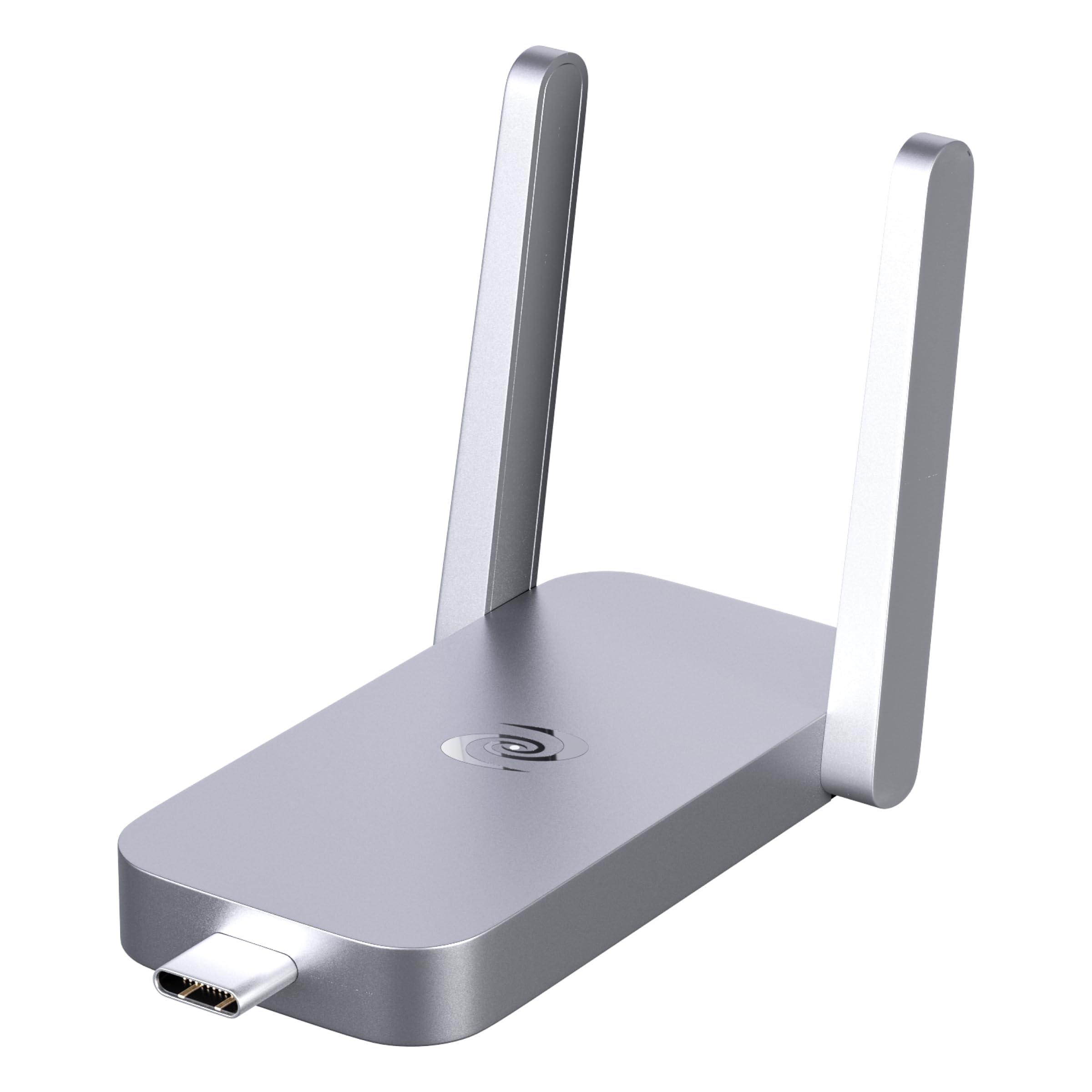
In today’s interconnected world, ensuring your online security and maintaining privacy have become paramount. One of the most effective ways to achieve this is by using a Virtual Private Network (VPN). While many users opt for VPN software on their devices, setting up a VPN router at home is a game changer that offers comprehensive network protection. A VPN router not only secures all connected devices simultaneously but also allows for seamless access to region-restricted content. But where do you start? In this step-by-step guide, we will walk you through the process of setting up a VPN router in your home. Whether you’re a tech novice or a seasoned enthusiast, this guide will equip you with the knowledge and tools necessary to enhance your home network’s security and privacy. Let’s dive in!
Table of Contents
- Choosing the Right VPN Router for Your Home Network
- Preparing Your Network for Seamless VPN Integration
- Configuring Your VPN Router Settings with Precision
- Testing and Troubleshooting Your VPN Connection
- Future Outlook
Choosing the Right VPN Router for Your Home Network
is crucial for ensuring seamless internet security and privacy. When selecting a VPN router, consider the following features:
- Compatibility: Ensure that the router supports your desired VPN protocols, such as OpenVPN or IKEv2.
- Speed: Look for routers that provide high-speed performance to prevent slowdowns while connected to the VPN.
- Ease of Use: A user-friendly interface will make the setup and configuration process much simpler, especially if you’re not tech-savvy.
- Firmware Updates: Choose a router that provides regular firmware updates to keep security features current and reliable.
Additionally, you may want to consider the router’s hardware specifications, such as CPU power and RAM, to handle multiple devices without impacting performance. Here is a quick comparison table of popular VPN routers:
| Router Model | VPN Protocols | Max Devices | Key Feature |
|---|---|---|---|
| Asus RT-AC86U | OpenVPN, PPTP | 32 | High-speed gaming |
| Netgear Nighthawk RAX80 | OpenVPN, L2TP | 40 | WiFi 6 support |
| Linksys WRT3200ACM | OpenVPN, PPTP, L2TP | 32 | Open-source firmware |
Preparing Your Network for Seamless VPN Integration
Before diving into the configuration of your VPN router, it’s crucial to ensure that your network infrastructure can support the integration. Start by conducting a thorough network assessment to identify any potential bottlenecks or limitations that might hinder VPN performance. This assessment should include an evaluation of your current bandwidth capabilities, router specifications, and overall network topology. Consider upgrading your internet connection if you frequently stream high-definition content or engage in online gaming, as these activities can be bandwidth-intensive and might conflict with VPN usage.
Next, prepare your network by setting up quality of service (QoS) settings on your existing router before implementing the VPN. This can help prioritize VPN traffic, ensuring consistent performance for critical applications. Additionally, make a backup of your current router settings; this precautionary step will allow you to revert to the original configuration if you encounter issues during the VPN setup process. If you are using multiple devices, ensure they are compatible with the VPN protocol you plan to use to avoid connectivity problems. Below is a simple checklist to guide you:
- Conduct a network assessment
- Check current bandwidth usage
- Upgrade your internet plan if necessary
- Configure QoS settings for traffic prioritization
- Backup existing router settings
- Ensure device compatibility with chosen VPN protocol
Configuring Your VPN Router Settings with Precision
When diving into the intricacies of your VPN router settings, precision is key. Start by logging into your router’s admin interface, usually accessible through a web browser by entering the router’s IP address. Once inside, you will typically find multiple settings related to VPN configuration. Ensure that you familiarize yourself with the following options:
- VPN Passthrough: Enable this feature to allow VPN traffic through the router.
- Firewall Settings: Adjust these settings to permit the necessary protocols for your VPN.
- Encryption Methods: Choose robust protocols (e.g., OpenVPN or L2TP/IPsec) for optimal security.
After configuring those fundamental settings, it’s essential to enter your VPN credentials accurately. This includes your username, password, and any required server addresses. Depending on your router model, you may also need to input additional settings like:
| Setting | Description |
|---|---|
| Server Address | The IP address or hostname of your VPN server. |
| Connection Type | The protocol through which your device will connect (e.g., UDP or TCP). |
| DNS Settings | Set DNS servers recommended by your VPN provider for improved security and speed. |
Review all changes and save your settings before restarting your router. A reboot will ensure that all configurations take effect, allowing for a secure connection across all devices on your network. Always consult your VPN provider’s guidelines for specific settings that may vary depending on your chosen service.
Testing and Troubleshooting Your VPN Connection
Once you’ve set up your VPN router, it’s essential to verify that your connection is working correctly. Start by checking your device’s IP address to see if it’s been successfully masked by the VPN. You can do this by visiting a site like What Is My IP. If the displayed IP address matches the server location of your VPN, you’re on the right track. If not, try rebooting your router and devices. Other steps include ensuring that your VPN settings are configured properly. Double-check the encapsulation options and protocols on your router’s VPN settings page.
If you are still experiencing issues, troubleshooting may involve comparing performance metrics both with and without the VPN. Use the following checklist to identify common problems:
- No Internet Access: Ensure the VPN connection is enabled and that you followed the correct setup procedure.
- Slow Speeds: Test your connection speed with and without the VPN. Selecting a closer server may improve performance.
- DNS Leaks: Run a DNS leak test to determine if your DNS requests are being routed through the VPN.
- Compatibility Issues: Check for any firewall or security settings that might conflict with the VPN operation.
Future Outlook
setting up a VPN router at home can significantly enhance your online privacy and security, providing you with the peace of mind you need in today’s digital landscape. By following the step-by-step guide outlined in this article, you’ll have the ability to protect all of your connected devices and enjoy unrestricted access to content from around the globe.
Remember, the specific steps may vary depending on the router model and VPN service you choose, so don’t hesitate to consult the user manuals and support resources for additional assistance. Whether you’re a tech novice or an experienced user, investing a little time and effort into configuring your VPN router will yield substantial long-term benefits.
If you have any questions or would like to share your experiences in setting up a VPN router, feel free to leave a comment below. Happy browsing, and stay secure!